Change your Windows 10 or 11 login password
Open Start and choose Settings.
Go to Accounts, then open Sign-in options.
Under Password, select Change.
Enter your current password, type the new password twice, and add a hint if Windows asks for one.
Whether you are replacing a Windows sign-in password, updating an online account, or adding protection to a Word file, the correct steps depend on what the password controls. This guide brings the major device, account, and document methods into one place.
For most computers and phones, start in Settings and look under Accounts, Sign-in Options, Security, or Passcode. For web services, open the account's Security settings. If you need to protect files rather than an account, built-in document tools work one file at a time, while dedicated file-security software can protect groups of folders and files together.

A password can protect very different things. Your Windows or phone password controls access to a device session. A Google, email, or Apple password protects an online account. A document password controls access to a specific file. Knowing which layer you are changing prevents you from updating one password while leaving the information you actually care about exposed somewhere else.
For example, changing a laptop password does not automatically replace the password on your Gmail account, and changing an email password does not add encryption to documents already saved on the computer.
Computers and phones: Windows sign-in, iPhone passcode, Mac account password, and similar controls.
Web and app services: Google, Gmail, Apple Account, cloud storage, and other online logins.
Documents and folders: Word encryption, encrypted archives, protected folders, and secure file containers.
On Windows 10 and Windows 11, the normal route is through account sign-in settings. The exact labels can differ slightly between versions, but the password control remains under the user account's sign-in options.

If you administer the computer and need to set a new password for a local account, Windows also supports the net user command. Open Command Prompt with administrator rights before using it.
net user [username] [new_password]Online-account passwords usually affect more than one app. A Google password, for example, applies to the Google Account used by Gmail, Drive, YouTube, and other Google services. An Apple Account password is likewise separate from the passcode used to unlock an iPhone or iPad.

Changing the password for Gmail changes the password for the Google Account connected to it.
On Android, you can also tap your profile picture in a Google app, choose Manage your Google Account, and open the Security tab.
Your device passcode and your Apple Account password serve different purposes, so choose the setting that matches what you want to change.
File protection is separate from your computer login. If a Word document already has encryption enabled, you change that password from inside Word. If you need to secure many files or folders, a dedicated encrypted container can be more practical than setting a different document password one file at a time.
Word's built-in option is useful for individual documents, but it is not designed for batch-protecting a large folder. For broader Windows file-protection options, the existing guide also references Avast's Windows file and folder protection guide.
Built-in tools can be enough for one document or an entire drive. Dedicated software becomes more useful when you want faster folder-level workflows or portable encrypted storage.
| Method | Ease | Protection | Batch use | Best suited to |
|---|---|---|---|---|
| Microsoft Word built-in | Easy | AES-256 on modern Office formats | No — one at a time | Individual documents you need to store or send |
| Windows hidden folders | Easy | No encryption; visibility only | Yes | Basic organization or casual hiding, not secure protection |
| Windows BitLocker | Harder | AES-128/256 | Yes — full drives | Whole-drive encryption on supported Windows editions |
| Folder Lock | Very easy | 256-bit AES | Yes — drag and drop | Quick protection for folders, files, and drives |
| 7-Zip | Moderate | AES-256 | Yes — inside archives | Compressing and sending protected file collections |
| VeraCrypt | Advanced | AES-256 and other options | Yes — encrypted volumes | Technical users who need encrypted containers or hidden-volume workflows |
For more background on native and third-party Windows encryption, the original page's external reference to ProPrivacy's Windows encryption guide is preserved.
For Windows or online-account passwords, the built-in settings are the right place to make the change. When the task is protecting many local documents and folders together, the existing site recommends Folder Lock because it combines a master-password workflow with 256-bit AES encrypted lockers and drag-and-drop file handling.
Folder Lock is developed by NewSoftwares.net.
The lock workflow restricts access and keeps protected items out of ordinary Windows browsing while protection is active. This is faster than assigning a separate password to every document.
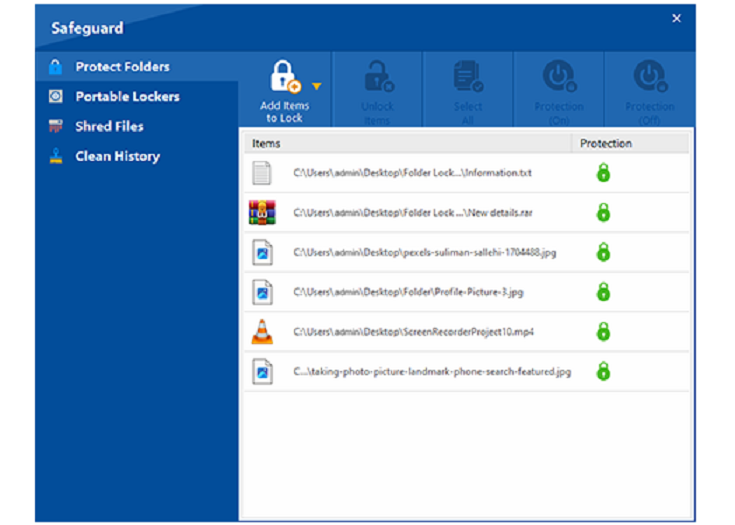
Encrypted lockers act as protected storage areas. Files added to a locker are encrypted and made available again when the locker is opened with the correct credentials.
Portable lockers are intended for moving protected data on USB and external drives so the secured collection can travel with the device. The existing site also links to an independent USB Secure listing.
The shredding feature is designed to overwrite deleted data rather than relying only on normal file deletion, which can leave recoverable traces behind.
The product family includes Android and iOS apps and locker workflows associated with services such as Google Drive, Dropbox, and OneDrive. The original Android destination is preserved at Google Play.

Instead of creating a different password for every Word file, a folder-level tool lets you place a group of documents behind one protected workspace.
For a Microsoft Account, use the recovery option shown on the Windows sign-in screen and complete the identity-verification steps by email, phone, or another available recovery method. For a local account, Windows may offer security questions or a password reset disk if those were configured beforehand.
Microsoft's document encryption is intentionally strict; Word does not provide a normal “forgot password” link that reveals or resets the existing document password. Keep the password or recovery information in a secure place before encrypting important files.
Change the password in Yahoo Account Security first. Then return to the mail account settings on the iPhone and authenticate again with the new credentials when prompted.
Google Photos Locked Folder uses the supported device screen lock rather than a separate folder password. Change the device's lock method if you need to change the credential used to open Locked Folder.
Export, restore, or synchronize important protected files before uninstalling. Removing a security app can also remove locally stored vault data, depending on how the app stores its protected content.
The existing page describes the full version as a one-time purchase rather than a subscription and also notes a Lite edition for basic folder hiding without encryption.

“I used to maintain separate passwords across several Word files. Moving sensitive documents into one protected vault reduced the number of credentials I had to manage while keeping the files together.”

On Windows, open Settings → Accounts → Sign-in options. On a Mac, use System Settings → Users & Groups. On phones and tablets, open the device security, biometric, or passcode settings that control screen access.
No. Services run by different providers must be updated individually because they do not share one password-control system. A password manager can make it easier to create and store a different password for each account.
An open password prevents someone from viewing the document without the password. A permissions password can allow the file to be opened while restricting actions such as editing, copying, or printing.
Word does not provide a built-in batch-password command for many documents. If multiple files need one protection boundary, encrypt or lock the parent folder with an appropriate file-security tool.
No. A standard password controls who can open the content, but it does not stop an authorized viewer from capturing the screen. Screenshot restrictions require specialized rights-management or anti-copy technology.
Once your Windows, Google, Gmail, or Apple credentials are updated, review the documents stored on the device. If several sensitive folders need the same protection workflow, an encrypted locker can be easier to manage than separate passwords on every file.
